




LIVE visibility
What does “LIVE visibility restricted” mean on TikTok?
With TikTok LIVE visibility restricted, check whether the notice covers the For You feed, search or both. Save the details you need for an appeal.
1. How to tell whether TikTok restricted your LIVE in For You or search
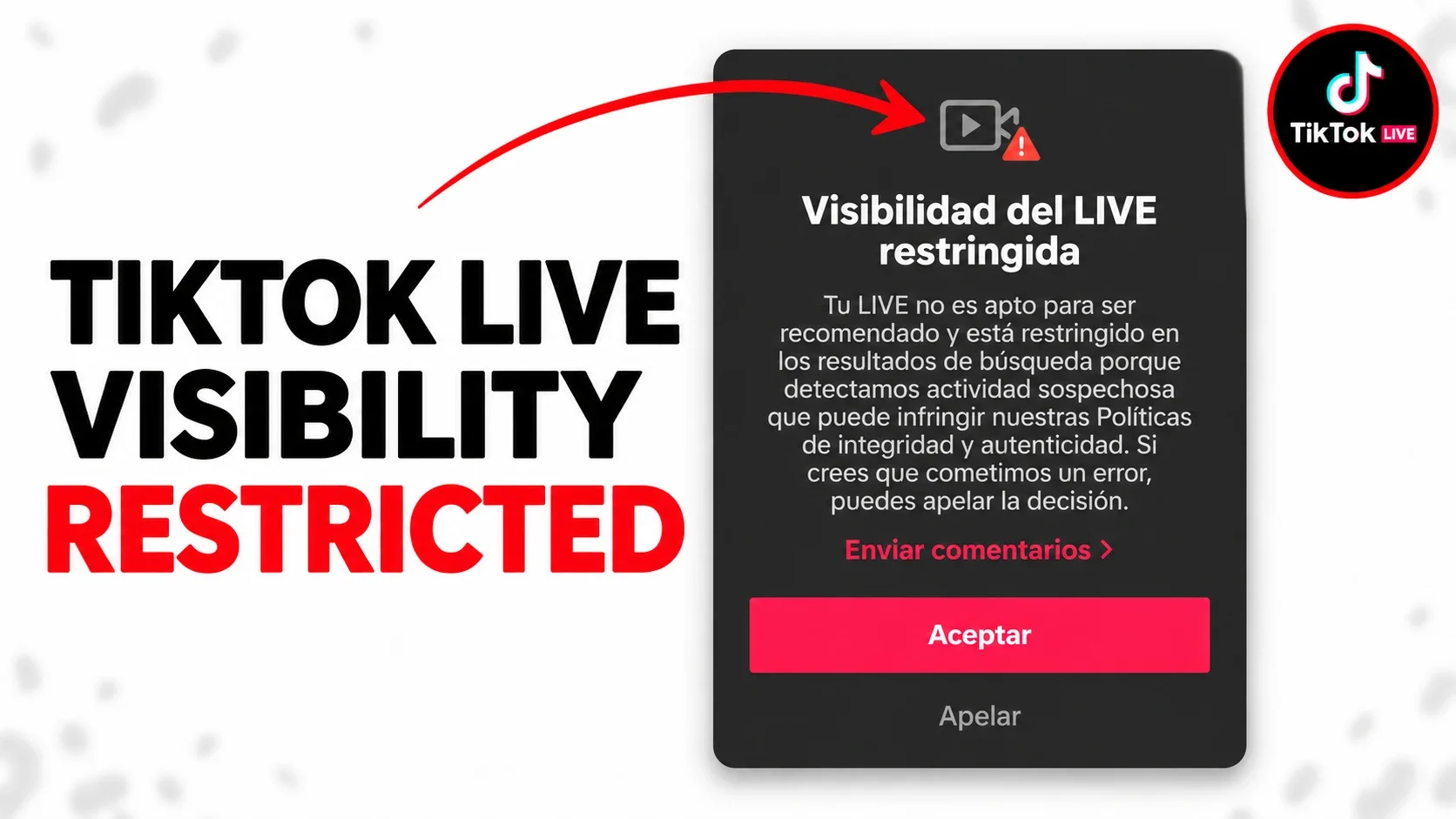
You are streaming, the chat is active and a “LIVE visibility restricted” warning appears. First, read where the restriction applies. If TikTok says your LIVE is ineligible for the For You feed, new viewers may find it harder to discover your stream. If it also mentions search results, that route is affected too.
Check separately whether the session is still live and whether people already watching can see and hear you. The viewer count alone tells you little about why it dropped. The notice identifies the action TikTok took on that stream.
If your notice says “for 10 minutes,” note when it appeared and check the status again when that period ends. The example pictured in this article shows no duration. Use the time displayed in your own notice.
2. How to identify the reason for the notice
If it mentions integrity or suspicious activity
Save the exact wording. In the example, TikTok flags suspicious activity without identifying a specific action. Check whether the stream played someone else’s content or used a service to generate artificial views, comments or likes. Correct any issue you can identify. If you think the decision was mistaken, keep a clip showing what was on screen.
Read TikTok’s integrity and authenticity rules
If it mentions visual quality or static images
Watch the feed your viewers receive. A fixed camera can capture your hands and the object you are demonstrating. A frozen scene keeps showing the same frame even as you carry on working.
- Black or blurry picture. Check which camera is selected, clean the lens and focus on what you are showing.
- Frozen picture. Move a hand in front of the camera and compare your preview with the live feed on another device. Allow for the normal stream delay.
- Still slide or looping video. Check whether the holding screen is still active. Switch back to your camera or demonstration and describe what viewers are seeing.
3. TikTok LIVE visibility restricted: what to do and how to appeal
- Before dismissing the notice, take a screenshot showing the reason, time and any duration. Capture the options displayed, especially Appeal.
- Check whether the stream is still running. Ask someone in chat what they see and whether they can hear your voice. If the stream looks normal to them, you can continue the session while you check the details.
- Fix any issue you can reproduce. If only the audience sees a frozen picture, check your connection and background uploads. If your preview freezes too, check the camera and the selected scene.
- If you believe the decision was a mistake, select Appeal when available. Give the exact time and describe what was happening. Attach the screenshot or a short clip if the app allows it.
Sample appeal
Hello. During my LIVE on [date] at [time and time zone], I received a notice stating “[exact reason].” At the time I was [describe what viewers could see and hear]. You can check [timestamp in the recording or screenshot]. Please review the visibility restriction on this stream. Thank you.
If the notice gave an end time and the restriction is still showing afterward, take a second screenshot. From Profile, open Settings and privacy and select Report a problem to send both screenshots with the case reference.
If Gifts were also suspended, see how to explain the context in your appeal
4. What to check before your next stream
- Lighting and focus. Make a short test recording under the lighting you will use live. If you show a product, check whether viewers can see its detail when you hold it close to the camera.
- Voice and sound. Listen to the test through headphones. Adjust the microphone until your explanation is clear over background noise.
- Connection and equipment. Check the signal where you will stream, close apps that are uploading files and select a quality setting your connection can sustain.
- Content and conversation. Prepare a demonstration and a related question. If you are painting an object, move closer to the brush as you explain the technique and leave time for questions.
- Scenes and breaks. Rehearse switching between your camera and a shared screen. When you return from a break, confirm which scene your viewers are receiving.
5. BullTok offers professional solutions for people and businesses that need to go live
If you need help interpreting the notices you receive, BullTok’s professional guide explains what to check. If you have tested your stream and your equipment needs an outgoing IP through a SOCKS5 proxy with UDP support, see the IP UDP TikTok product page and check compatibility with your setup.
Guide to permanently removing a TikTok shadowban
Platform secrets and what to do to stream again when you have already tried everything. Includes an AI skill for personalized questions.
Continue
IP UDP TikTok
Clean IP for streaming · SOCKS5 with UDP · 150 Mbps
ContinueTo request a visibility review, use the option TikTok provides in the notice. If you need help choosing a BullTok resource, tell us which message appeared and what device you use to stream.
6. Accounts for streaming from a PC or phone
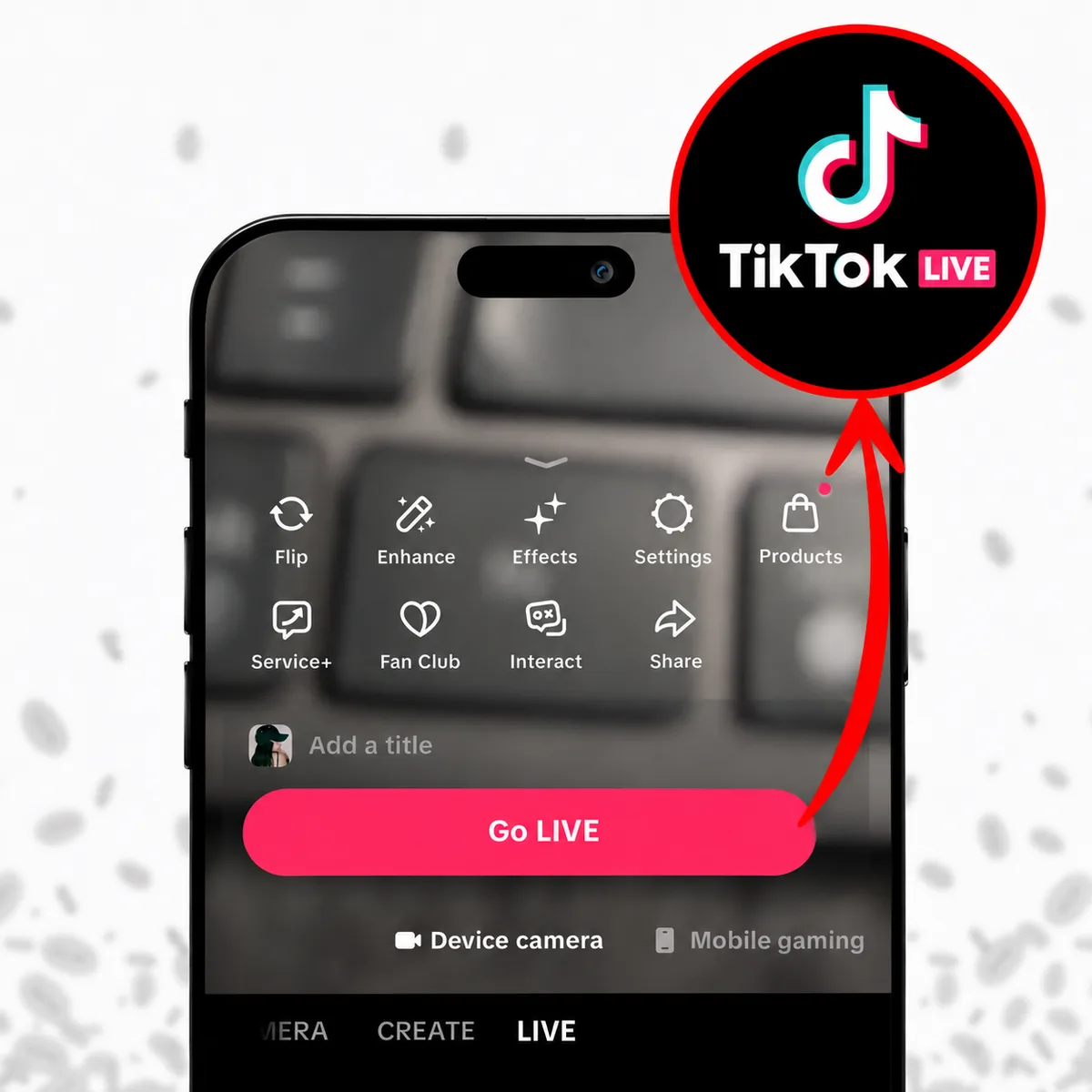
If you also find that you can no longer start a LIVE, look for a notification about access to that feature. Our article on removed access explains how to check whether the restriction covers LIVE Studio, mobile streaming or both, and how to request a review.
Read what to do if TikTok removed your LIVE access
When setting up a project with streaming access enabled, you can buy a TikTok account with Live Studio access for a PC, or a live ready account for your phone. Each product page lists options and availability. TikTok requires you to respect active restrictions when using other accounts.
After the restriction is resolved, if you are testing a different market with a new IP, we recommend a dedicated account for that audience. Compare viewer locations across your first streams to see whether you are consistently reaching people in the country you chose.
7. How to follow up on repeated notices
Record the exact reason, time and active scene for each notice. If two quality warnings coincide with switching from the camera to screen sharing, test that transition before going live again. If the reasons differ, review each incident separately.
Keep TikTok’s responses with your notes. On your next LIVE, check the setting you changed and review the part of the recording where the problem previously occurred. Check your account notifications for the duration of a restriction or the outcome of an appeal.
8. TikTok LIVE visibility restricted: FAQ
How long does LIVE visibility restricted last?
If there is a time limit, it appears in the notice. If there is none, check your system notifications and appeal if you believe there was a mistake.
Does LIVE visibility restricted affect my followers?
It mainly limits new viewers arriving through recommendations or search, as the notice states. Your followers may still find the stream in other ways.
Article sources
These references explain the rules or operation of each service. Check TikTok for the features and notices that apply to your account.