






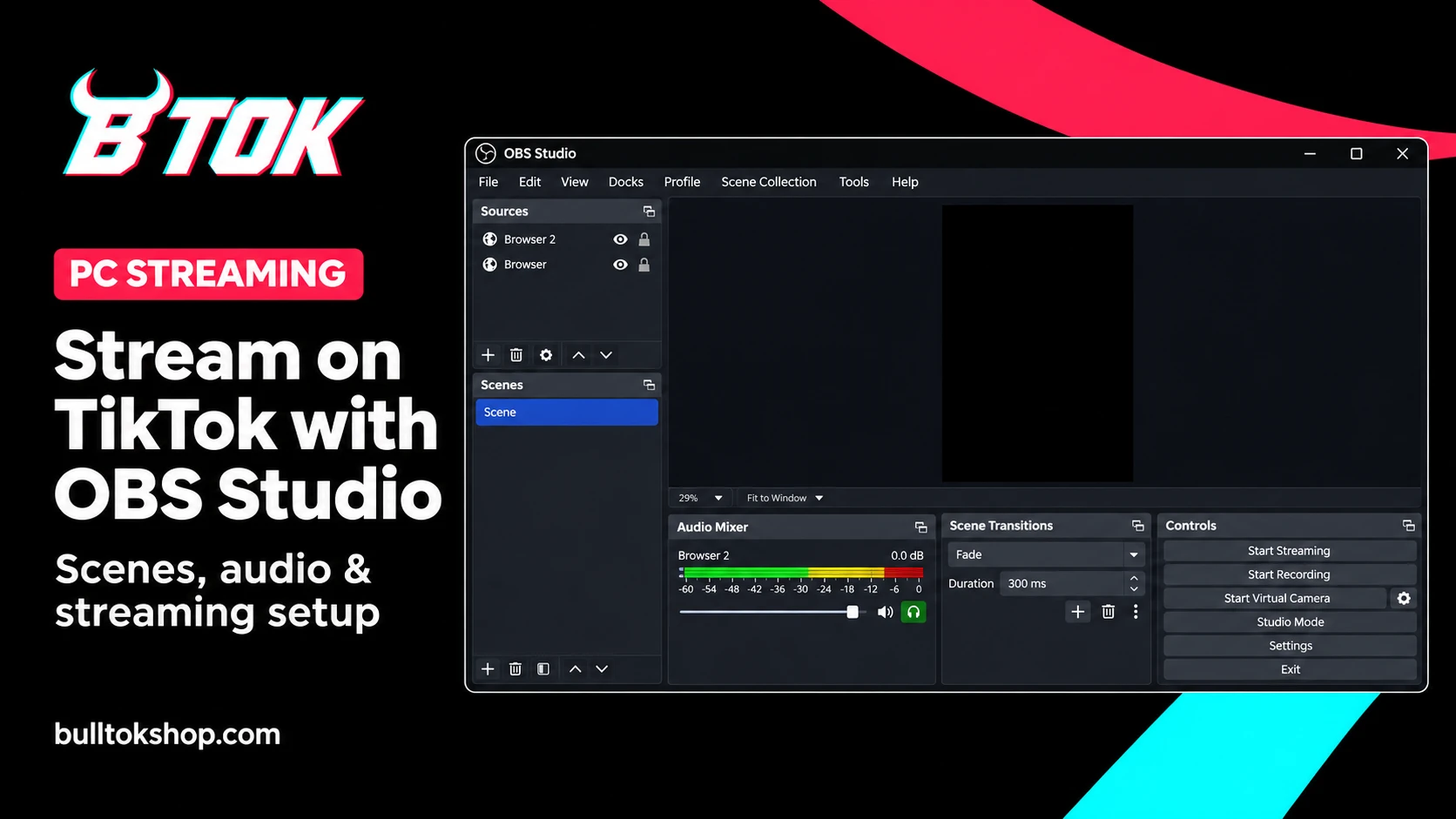
What OBS Studio does and what your TikTok account needs
OBS Studio is software for live production, recording and streaming. It combines sources such as a camera, game, presentation, images and audio into a composition you can change while talking to your audience. You can save the result on your computer or send it to a compatible destination. Installing OBS does not enable features on a TikTok account: the software and the platform’s authorization are separate requirements.
- Source
- Every element you incorporate: for example, the camera that shows your face, an application window or the microphone.
- Scene
- A composition of sources. You can have one for chatting, one for showing a demo, and one for pausing.
- Encoder
- Converts video and audio into a compressed signal on the computer sending the broadcast. It can use supported hardware or the CPU.
- Server and key
- The destination address and credential for an RTMP/RTMPS connection. They are necessary when you broadcast directly through that channel, but not to start the local virtual camera.
Access to LIVE does not mean access to all tools
TikTok requires you to be at least 18 years old to go LIVE and meet its eligibility criteria, including minimum followers applicable to your location. The figure of 1,000 followers that appears in many guides should not be interpreted as a universal rule or as a guarantee of streaming key. Review the requirements that TikTok presents on your account and complete any age or identity verifications it requests through its official channels.
Separately check LIVE from mobile, access to LIVE Studio and the possibility of using an external tool. Being able to broadcast from one of those surfaces does not prove that the others are available. There is also no general activation timeframe that we can promise: a wait of hours or days, an older account or a larger number of followers are no substitute for confirmation of access.
Consult the current requirements of TikTok LIVE (opens in a new tab)How OBS connects with TikTok: choose your signal path
Before changing settings, identify which application publishes the stream. With RTMP, OBS sends video and audio to TikTok’s server. With a virtual camera, OBS supplies a local video feed to LIVE Studio, which broadcasts it. With a relay service, an intermediary receives your signal and distributes it to an authorized destination. Each route has its own permissions and checks.
01 · Direct connection
- OBS Studio
- RTMP/RTMPS Server
- TikTok LIVE
OBS sends image and audio. You need a valid server and stream key for your account.
02 · Virtual camera
- OBS Scene
- LIVE Studio
- TikTok LIVE
The virtual camera delivers local video. Audio is configured separately in LIVE Studio.
03 · Intermediary
- OBS Studio
- Authorized service
- TikTok LIVE
The service receives and forwards the signal. You need approval and review its conditions.
| Your situation | Method to consider | Key check |
|---|---|---|
| You have a valid server and stream key | Direct broadcast from OBS | That the data corresponds to the account and the session that you are going to use. |
| You have LIVE Studio, without direct key | Virtual camera, if supported | That LIVE Studio allows you to select it and that video and audio work on your device. |
| A service supports your account | Integration through a relay service | Effective authorization, TikTok destination enabled and conditions of service. |
| You do not have any routes enabled | Review eligibility and access | Changing the bitrate or installing a plugin does not grant streaming permissions. |
The virtual camera is a composition tool, not a mechanism for obtaining a key. An intermediary also does not eliminate TikTok's requirements. This distinction avoids wasting time trying to fix the network when the real problem is that the account does not have the selected path enabled.
First prepare a simple route that you can check. When it works, add alerts, new cameras or more destinations one at a time. This way you will have a stable reference and you will know which change introduced a problem. Production complexity should grow after verifying the basic connection.
TikTok stream key for OBS: where to find it and how to connect
This route depends on TikTok providing your account with the data to broadcast with external software. Control names and locations may change by market and version. Enter from an official TikTok site and look for the LIVE tools available for your account; use the streaming software option when it appears. Not all users see the same dashboard.
The stream key does not appear: what do I do?
Check if you are viewing the LIVE tools of the correct account and if the panel offers streaming with external software. The server and key must come from the authorized destination; They are not obtained from the username or public URL of the profile. If only LIVE Studio or LIVE Mobile access appears, this does not confirm RTMP access.
Without a valid server and key you cannot complete that direct connection. Check the status and application path offered by TikTok. If you already have LIVE Studio, you can study the virtual camera workflow described below, provided your installation supports it. It is not a way to generate a key or bypass a restriction.
Use the virtual camera when that route is compatible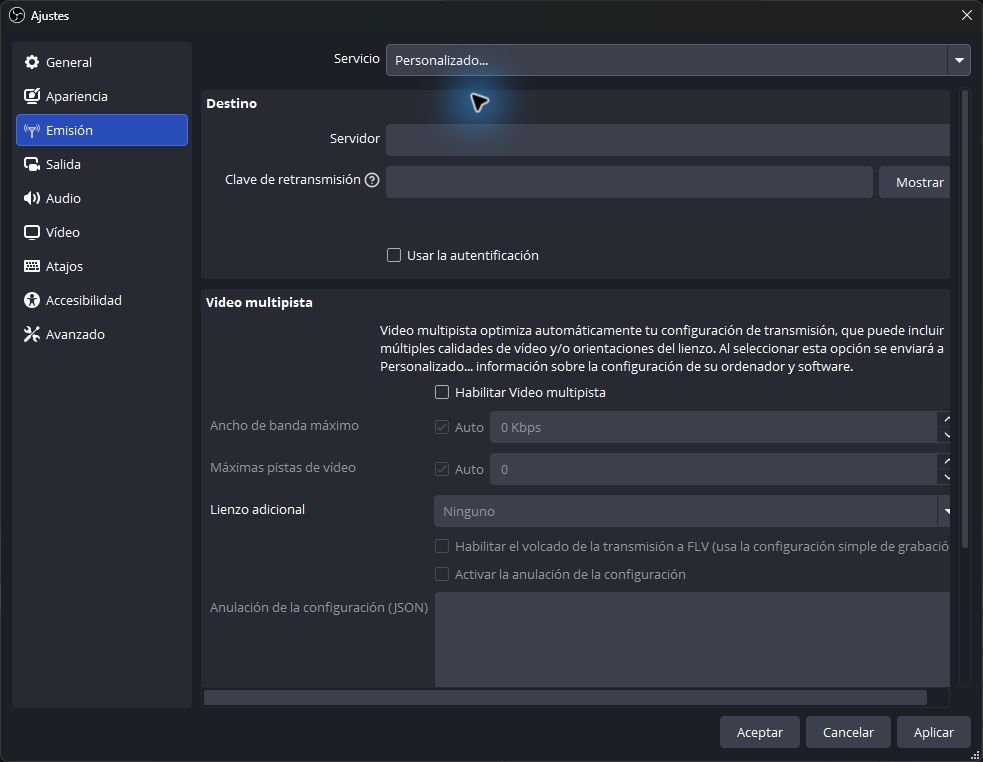
Confirm account, access and destination
Check the user you are logged in as and the features available on their dashboard. If you manage multiple accounts, avoid working with ambiguous tabs. Locate the section that delivers the external transmission data; if it does not exist, check access again before configuring OBS.
You know which account will receive the signal and you have access to its external broadcast function.
Prepare the session on TikTok
Complete the title, category, cover and other fields requested by the current interface. Read what each button does before you press it: Don't assume that a control called "Go Live" always opens a private test or that it never publishes. Work as if the broadcast can be made public upon confirmation.
The session is ready and you understand the next step indicated by TikTok.
Copy the server URL and stream key separately
Server tells where to connect; The key identifies access to the broadcast. Copy both from the same session and preserve exactly the protocol provided by TikTok. Don't swap fields or fill in an address by hand that you remember from another tutorial. Avoid added spaces when copying.
You have the corresponding server and key, without showing them in a screenshot.
Set the destination in OBS
In Settings → Stream, select the service required by your workflow. If you have a server URL and stream key to enter manually, select Custom and fill in Server and Stream Key. Save your changes. Field names and translations may vary slightly between versions.
OBS points to correct destination; You haven't pasted a TikTok key on a server from another provider.
Review the scene you are going to send
Before starting, confirm the framing, visible sources, and audio. Close windows with sensitive data and leave an opening scene ready. If you use Studio mode, distinguish preview from program output: the audience will receive the composition sent to program.
The output image and sound are ready for real broadcast.
Send the signal and verify its reception
Click Start Streaming in OBS when TikTok’s dashboard indicates that it is ready to receive the signal. Check that the destination receives video and audio. If TikTok requests a further confirmation to publish, follow that prompt. The OBS timer alone does not prove that viewers can see your stream.
The status of the destination confirms the broadcast and you can check its image and sound.
Stop the stream at both ends
When finished, stop the output and close the LIVE according to the destination flow. Check that TikTok no longer presents the session as active and that OBS has stopped transmitting. Save your quality notes and remove connection data from any capture before sharing.
There is no public session left open or an output still sending a signal due to carelessness.
Use OBS Virtual Camera with TikTok LIVE Studio
Virtual Camera allows a supported application to receive the OBS composition as a camera source. With this workflow, LIVE Studio is in charge of publishing the live video. It is a possibility when you already have access to LIVE Studio and your installation allows you to select OBS Virtual Camera; We cannot guarantee that any combination of account, system, and version will support it.
Build a simple scene in OBS
Start with the camera and a label, or the window you want to display. Adjust the proportion and check that everything fits. This first test is to recognize the image when it arrives at LIVE Studio; you don't need to load all the project elements yet.
The composition is displayed correctly in the OBS output.
Start the virtual camera and check its output
Start the virtual camera from the OBS controls. Its settings let you choose the output it delivers. In Studio Mode, check whether you have selected Program or Preview: sending Preview could show viewers the changes you are still preparing.
The virtual camera delivers the composition you want to publish.
Select it as camera in LIVE Studio
Add a camera source and search for OBS Virtual Camera among available devices. If it does not appear, check virtual camera compatibility, permissions, and registration by following the OBS documentation for your system. Don't install unknown plugins that promise to activate TikTok permissions.
LIVE Studio receives moving image from OBS.
Set up audio in LIVE Studio
Select the microphone and sound sources that the audience should hear. The OBS virtual camera carries video, not the audio mix. Moving the OBS meters does not confirm that the sound has reached LIVE Studio. Do a check in the application that broadcasts.
LIVE Studio's mixer responds to the voice and sound you really need.
Test changes and synchronization
Switch between scenes in OBS, move an object in front of the camera and speak. Check the target image and whether voice and lips are synchronized. A recording or test allowed by the tool helps to verify this; do not assume that a LIVE session is private.
Scenes change without displaying internal settings and audio accompanies the image.
Publish and finish from LIVE Studio
Start and end the broadcast with the LIVE Studio controls. In this way you do not need to press Start Streaming in OBS to send RTMP. Keep OBS open while it delivers the image and, when you close the live, stop the virtual camera as well.
You know that LIVE Studio publishes and OBS composes the image.
If you need to move the entire OBS mix
A production with music, videos and multiple microphones may require a virtual audio device or a specific mix path. This requires checking the software, its compatibility and how the signal is monitored. It is not enough to activate the virtual camera. Design a single path per sound and prevent LIVE Studio from capturing both the entire mix and a second copy of the microphone.
To start, it is often easier to manage your microphone directly in LIVE Studio and use OBS only for the video composition. Expand your audio setup later if needed. Running two programs increases the computer’s workload, so test performance with both running together.
OBS Documentation: Virtual Camera Operation and Outputs (opens in a new tab) Troubleshooting virtual camera based on system (opens in a new tab)Connecting through a service: what it provides and what it does not solve
An intermediary receives your signal and sends it to one or more destinations. The connection may use account authorization or RTMP data, depending on the provider. OBS connects to the service; the service maintains a second connection with TikTok. If the first link works and the second is rejected, OBS can show activity even if your live does not reach TikTok.
Restream is a documented example of this integration, not a service included with BullTokShop accounts. Its documentation states that mobile LIVE access does not guarantee approval to stream through Restream, and describes specific conditions for gaming content. Check its current documentation and your actual account status before subscribing or building a production around this connection.
Check the service before adding it to your flow
- TikTok appears as an enabled destination for your account, not just an advertised option.
- You know what permissions linking grants and how to remove them.
- You have reviewed the cost, quality limits, destinations and functions of the plan you will use.
- The service panel confirms both reception from OBS and output to TikTok.
- You have checked latency, orientation and sound at the final destination.
- You know who offers support on each leg if the connection fails.
Do not enter TikTok credentials on pages that imitate your login. Follow the official authorization of the provider and review the permissions. If the service allows you to use a stream key, treat it as a sensitive credential. Sending that key to a service means trusting it with the ability to use it as long as it is valid.
Multistream with OBS: TikTok and another platform at the same time
You need each destination to be authorized and a flow capable of distributing the signal: an intermediate service or additional outputs compatible with your installation. Setting TikTok to a destination does not automatically connect Twitch or YouTube. Check the conditions of each platform and the functions of the chosen service or plugin.
| Signal path | What comes out of your computer | What you should check |
|---|---|---|
| Service that redistributes a signal | One upload to the relay service, which forwards the signal to enabled destinations. | Access to each destination, plan, formats, reception and relay-service limits. |
| Various outputs from your device | One transmission per output configured. | Sum of bitrates, encoding capacity and compatibility of each output. |
Calculation example, not a TikTok requirement: two outputs, each carrying 4,500 kbps of video and 160 kbps of audio, total 9.32 Mbps before protocol overhead. One equivalent upload to a relay service totals 4.66 Mbps before overhead. Test stability and encoding load separately; neither can be established from this calculation alone.
Also design for each screen: a horizontal video signal may need another composition for TikTok. Review the result in both destinations, who attends each chat and how you will stop all outputs. Keeping the signal active in OBS does not prove that both platforms are publishing it.
Restream: access, authorization and conditions of its integration with TikTok (opens in a new tab)Set up OBS for TikTok: ratio, resolution and stability
The appropriate setting depends on the content, equipment, connection, and what the destination accepts. The following table proposes two test profiles for vertical production, not universal official requirements. If your panel or provider indicates other parameters, follow those values. We also do not make 6,000 kbps a general limit for TikTok: the maximum allowed must be confirmed in the path you use.
- Base Canvas
- The space where you place the sources. 1080 × 1920 has 9:16 vertical aspect ratio; 1920 × 1080 is horizontal 16:9.
- Output resolution
- The size of the video you send. You can compose at 1080 × 1920 and reduce to 720 × 1280 while maintaining the aspect ratio.
- FPS
- How many frames you produce per second. Increasing them requires more processing power from the computer and more information to compress.
- Bitrate
- The amount of data you assign to video or audio per second. It is not the same as resolution or download speed.
| Parameter | Lower-load test | Higher-detail test |
|---|---|---|
| Canvas | 1080 × 1920, portrait | 1080 × 1920, portrait |
| Output | 720 × 1280 | 1080 × 1920 |
| Frame rate | 30 fps | 30 fps; consider 60 only if your content, computer and destination justify it |
| Video | 3000 kbps as test point | 4,500 kbps as test point |
| Audio | 160 kbps as test point | 160 kbps as test point |
| Signal format | H.264 video and AAC audio, if supported by destination | H.264 video and AAC audio, if supported by destination |
| Rate Control | CBR when required by destination | CBR when required by destination |
| Keyframes | 2 seconds only if it matches the destination | 2 seconds only if it matches the destination |
In Settings → Video, check canvas, output and FPS. Then reposition the sources: Changing the aspect ratio doesn't automatically transform a horizontal layout into a useful vertical one. Don't stretch a face or screen to fill space. You can cut out a part that is not necessary or combine camera and content in different areas, checking that important details are still visible.
Encoder and keyframes, without confusing concepts
In Settings → Output you will find the broadcast options; Advanced mode shows more controls. A compatible hardware encoder can offload work from the processor, but does not make GPU resources unlimited. Choose between the options actually available on your computer and supported by the destination. Don't select a codec just because it's newer.
The keyframe interval is usually expressed in seconds. If the destination requires 2 seconds, enter that interval in the appropriate field. For mathematical reference, two seconds at 30 fps is equivalent to 60 frames; at 60 fps it equals 120. Don't mix seconds with a frame count calculated for a different frame rate.
How much upload bandwidth do you need?
The upload must support the entire video, audio and transmission overhead, with room for variations and other network uses. For example, 4,500 kbps of video plus 160 kbps of audio adds up to 4.66 Mbps before adding that overhead. A connection that barely reaches that figure in a specific test leaves very little margin. This calculation helps with sizing; it does not certify that the route to the server is stable.
Test at the time and place where you will broadcast. A cloud backup, a video call, or a congested wireless network can change the outcome. If you have a wired connection, compare it with your Wi-Fi. Note the settings and modify one variable at a time: first stabilize the signal and then look for more resolution or movement.
Audio: a clear path for every sound
A live stream can look sharp and still be hard to follow if the voice is quiet, duplicated or out of sync. Before adding filters, decide what viewers should hear: your microphone, game, presentation or guest. Then identify the input path for each sound and the application that sends it to the stream.
| Connection | Where do you prepare the audio | What needs to be confirmed |
|---|---|---|
| Direct RTMP | Mixer and OBS Output | The broadcast track includes the necessary sources and reaches the destination. |
| Virtual camera | LIVE Studio Mixer | Audio has been added separately; The virtual camera only provides video. |
| Intermediary | OBS and service receiving panel | The service receives sound and preserves it when sending it to TikTok. |
Avoid duplications before correcting them with filters
The same microphone can be captured as a global device and as a scene source. You can also hear the voice twice if it comes through a virtual mix and also through its original device. Silence one route at a time to locate duplication. Don't try to correct a two-input echo with a noise suppression filter.
Use headphones so the microphone does not pick up monitoring audio. Mute the player you use to check your own live stream if its sound could be included in desktop audio capture. Headphones help prevent acoustic feedback, but do not fix duplicate sources inside the software.
Levels, filters and voice test
Record a phrase speaking with the intensity you will use live and another with more energy. Listen if it is understood and if it distorts. First correct the distance to the microphone and the input gain. Noise suppression can reduce a constant background; an overly aggressive gate can cut off word endings. A compressor or limiter should be adjusted after having a clean input signal.
Keep the sample rate consistent between your devices and the app when possible; 48 kHz is a common option in video production, depending on the equipment and destination. Check if you need a stereo output or centered voice. That the meter moves only on one side can indicate a mono input interpreted as stereo, something that should be corrected before publishing.
Distinguish streaming latency and lip-sync errors
The latency of the platform means that the public sees the live stream after you produce it. Audiovisual mismatch occurs when voice and image do not coincide within that signal. To measure this, perform a visible clap on a test recording. Adjust the delay of the component that arrives first and repeat the check; Don't apply a large compensation just because the live stream takes a while to appear on another device.
OBS: types of image and audio filters (opens in a new tab)Design a production that can be understood from a phone
Personalization makes sense when it helps explain the content. In a vertical live, an entire computer window may be too small even if the video has a high resolution. Choose what detail the audience needs to see at each moment: your expression, a piece, a step in a program or a specific area of the game.
CONVERSATION
A camera, a clear subject
Keep your face prominent and your lighting consistent. A short caption helps viewers arriving midstream understand the topic. Leave space so TikTok’s controls and comments do not cover essential information.
Useful test: look at the result on a phone and check if the title reads without magnification.
DEMO
Zoom in on what you are explaining
Combine your camera with a window or detail shot. Change the scene when you need to give prominence to the demonstration. A window capture reduces the risk of accidentally showing other applications.
Useful test: follow a step with only the image, without knowing in advance where you are pointing.
GAMING
Retain game information
A horizontal game needs a composition designed for vertical. Cut only what is unnecessary and review markers, map and text. The presenter's camera should not cover what the viewer needs to understand the game.
Useful test: review a scene with real movement, not just a static menu.
PAUSE AND CLOSE
Prepare a pause and closing scene
Create a simple pause scene and a goodbye scene. Decide in advance what happens to the microphone in each one: changing the image does not always silence an audio source that remains active.
Useful test: Switch to pause and listen to a recording to confirm what's still coming.
Sort and name the sources to recognize them during the broadcast. Lock the position of what is already in place and avoid modifying a complex scene while it is on air. If you use Studio mode, rehearse the transition from preview to program; With virtual camera also check which of those outputs you have selected.
Add widgets only when they help the content. A panel for reading comments and an overlay visible to the public are different elements; In the next section you can prepare chat and alerts with a browser source.
Prepare chat and alerts in the compositionSave your collection of scenes and a settings profile that you can identify. A working copy before changing production allows you to return to a known point. If you record at the same time as you broadcast, check disk space and additional system load. The OBS documentation explains recording and remultiplexing formats; Choose an option that you can recover and edit with your tools.
OBS: sources, order and composition (opens in a new tab) OBS: local recording and output formats (opens in a new tab)How to put TikTok chat and alerts in OBS
There are two different needs: reading the comments while you present and making those comments part of the video. For the first thing, keep the TikTok authorized panel open in an area that you don't capture. For the second, incorporate a compatible overlay as a scene source; Their messages will be seen in the broadcast and in the recordings that include that composition.
Show chat with a browser source
OBS can display a web page within a scene using a Browser source. That feed doesn't fetch TikTok comments on its own: it needs an overlay URL provided by a supported integration. Do not paste your private account page or a panel with management data as a substitute for an overlay.
As a documented example, TikFinity offers a Chat overlay. Their guide tells you to customize it, try sample messages, and copy its URL. In OBS: Sources → + → Browser, create the source and paste that URL. Adjust its dimensions and position so that the text is readable; the provider's guide proposes about 400 pixels wide as an example, not as a TikTok requirement.
If no messages appear, distinguish between tests: the Test button shows examples; During a LIVE, integration connection and real comments are needed. Check the URL and that the source is visible in the scene. The integration is an external service: check compatibility, permissions and current conditions; It is not included with the BullTokShop account.
TikFinity: procedure for your chat overlay (opens in a new tab) OBS: Browser source settings (opens in a new tab)Follower or Gift Alerts: Event, Action and Sound
In the TikFinity example, Actions & Events allows you to relate an event to a visual or sound action. Copy the URL of the overlay screen indicated by the provider and add it as a Browser source in OBS. Use its event simulator to review the result without waiting for a real gift. It is a test of the alert design, not a transaction or income verification.
Check the volume along with your voice and avoid capturing the same sound twice. If you deliver the image via virtual camera to LIVE Studio, remember that the virtual camera does not carry the audio mix: review the sound path separately. Keep the effects brief and leave the main content visible.
TikFinity: setting up and testing your alerts (opens in a new tab)Before showing interaction within the video
- The URL corresponds to the overlay prepared to broadcast, not to a private panel.
- The text is readable on a phone and does not cover the main content.
- The visual test and sound test work in the publishing application.
- You know how to hide the source if an inappropriate message appears.
- Actual operation depends on access and connection of the integration, in addition to OBS.
OBS Studio or TikTok LIVE Studio: compare for the work you need

 OBS Studio
 Mobile LIVE
There is no winner for all productions. OBS offers a flexible composition and output environment; LIVE Studio organizes work around TikTok and the features available for your account. You can also combine both, assuming a larger configuration and load. Useful comparison starts with your needs and the access you actually have.
| Aspect | OBS Studio | TikTok LIVE Studio |
|---|---|---|
| Program | Free and open source; official download for compatible systems. | TikTok Tool; check version, requirements and access of your account. |
| Connection to TikTok | Depends on authorized RTMP, a supported virtual camera, or an approved integration. | Publish using the features enabled in LIVE Studio. |
| Composition | Scenes, sources, filters and plugins; requires setting up production. | Integrated composition and interaction tools depending on version and account. |
| Chat and events | A video connection does not by itself incorporate chat, gifts or alerts. | May include TikTok’s own interaction tools; check which ones are available. |
| Learning | More decisions on production routes, adjustments and maintenance. | Platform-centric flow; It also requires preparing scenes and checking audio. |
| Computer load | Depends on sources, resolution, FPS, encoding and recording. | It depends on your configuration; It is not always presumed lighter than OBS. |
| Various destinations | Requires a supported stream, service, or plugin where applicable. | Check the outputs your version supports; do not assume multiple distribution. |
| Combined use | Composes the image delivered by the virtual camera. | Receive that image, configure audio and publish the LIVE. |
If you already have a production organized in OBS, maintaining its scenes can make your job easier. If you start with a camera and a conversation, the tool with confirmed access and fewer steps may be more convenient. For an agency, it is also important that someone else can understand the project: clear names, documented settings, and a way to recover the previous state are more valuable than a collection of difficult-to-maintain plugins.
Go deeper into the TikTok LIVE Studio accountWhen something fails: first locate where in the route it occurs
Note the exact error message, your connection method and your most recent change. Check five separate stages: account access, the OBS video output, encoding, network transport and reception at the destination. Changing everything at once can hide the cause and leave you without a known working configuration.
| What happens | First check | Next step |
|---|---|---|
| Server or stream key does not appear | That the account has external broadcasting enabled. | Check the official access. Consider the virtual camera only if LIVE Studio is enabled and supported. |
| OBS does not connect to the server | Current server, protocol and key, copied without errors. | Check network and program permissions. Don't assume that every failed connection is an expired key. |
| OBS transmits, TikTok does not show LIVE | Receive and publish status at the destination. | Follow the dashboard’s publication prompts. If you use a relay service, also check its output to TikTok. |
| OBS image is already black | Source visibility, device and capture type. | Try a simple source. Check system camera or screen permissions. |
| The image is cut off at the edges | Canvas ratio, output and framing on the receiver. | Reposition the source; do not stretch the image to correct an incompatible layout. |
| Frames are lost over the network | Route stability and sent bitrate. | Reduce network load, test cable and compare with a lower bitrate within what is supported. |
| There is a rendering or encoding delay | Computer load and OBS statistics. | Simplify scenes, limit game workload or reduce resolution/FPS; try a compatible encoder. |
| Virtual camera without sound | Audio configured in the publishing application. | Add the corresponding microphone or mix path; virtual video does not incorporate audio. |
| Duplicate voice or echo | Repeated sources and recaptured monitoring. | Keep one path per sound and check with headphones. |
| LIVE is interrupted | Destination notice, network status and OBS log. | Distinguish technical error, logout and content restriction before retrying. |
Network and performance are not the same problem
OBS statistics help distinguish network losses from rendering or encoding delays. If the composition is not generated on time on your computer, increasing the internet speed does not solve that burden. If the equipment works well but the delivery does not hold up, lowering the complexity of a scene may not correct the network path. Start with the indicator that changes during the failure.
For performance issues, compare a minimal scene to your full production. For connection issues, compare network conditions without blindly changing the account or destination. A firewall may require a specific rule for OBS; do not leave system protections disabled as a permanent solution. If you use a VPN or proxy for a legitimate reason, check its effect on stability without assuming it changes TikTok permissions.
What information is used to receive help
Prepare OBS version, system, connection method, fault time, message and main settings. If you share a log or screenshot, review it first and hide keys, session data and personal information. Describe whether the problem also appears on a local recording or only on the destination. This difference helps to limit the affected section without requesting unnecessary changes.
If TikTok displays a restriction, review the reason and the platform's review path. An interruption does not by itself prove a shadowban, an expired key, or a music violation. Avoid restarting repeatedly without reading the warning: preserve the necessary information and treat the cause that is actually indicated.
OBS: connection diagnostics and lost frames (opens in a new tab) OBS: Rendering and Encoding Diagnostics (opens in a new tab)Protect your stream key, your account and what appears on the screen
A stream key is a credential for sending a broadcast. It is not your TikTok login password, but while valid it may let anyone who has it publish through that connection. Keep it out of tutorials, screenshots, public support chats and files shared with collaborators who do not need streaming access.
A practical security review
- Show a specific window when sufficient; Avoid capturing the desktop with passwords or open messages.
- Hide the server and key panel before starting screen sharing.
- If a key is exposed, stop broadcasting if necessary and revoke or regenerate it through the destination; update OBS.
- Activate the security measures offered by TikTok and review authorized devices and applications.
- Download OBS from its official site and check the origin of plugins and integrations.
- Test updates before a major broadcast, keeping a copy of the production.
- Agree on what permissions each collaborator needs and remove access when they stop participating.
A pause scene is not a universal privacy button
Switching to a still image may hide the desktop, but the microphone may still be open. Review image and audio separately when answering a call, opening a document or assisting someone off camera. A well-rehearsed mute key and simple pause scene reduce errors when you're focused on the conversation.
Music, guests and third party material
Use content that you can broadcast in the specific context of your live stream. The availability of a song in a library should not be construed as a universal license for any commercial use, territory or broadcast. Review the conditions applicable to the material and the account. The same happens with videos, broadcasts of events and personal data of those who participate.
A correct technical setup does not ensure that the platform approves content or prevent access reviews. OBS prepares and sends a signal; TikTok maintains its own rules. Separating these responsibilities helps you know if you need to fix a scene, resolve a connection, or review an account notification.
Download OBS Studio from the official project (opens in a new tab)What the OBS account option means at BullTokShop
In the BullTokShop catalog, OBS is an account type within LIVE Studio, with price and availability independent of Organic and Bots. Availability is reviewed by country and account type; The specific functions must match what your project needs. To find the right option, check the group, region, and features listed in the catalog.
The OBS software is free: what you must distinguish is the access or service associated with the account. The account does not include hardware. Nor is it presumed to provide a computer, a capture device, templates, intermediary subscriptions, installation of plugins or a custom configuration if it has not been expressly specified.
Define the scope before setting up production
- Function
- Specify if you need direct broadcast with server and key or if your project uses LIVE Studio with virtual camera. They are different needs.
- Region
- Check the region offered and the availability of that account type. Do not confuse it with your country of residence or with the origin of the entire audience.
- Project
- Explain what you are going to broadcast, what equipment you have and if you already have OBS scenes. This allows identifying real dependencies.
- Conditions
- Check delivery and warranty applicable to the chosen option. The access offered does not equate to a promise of viewership, revenue, or lack of future TikTok reviews.
If you also need an account for a specific niche, it is a personalized selection through our network of agencies, with content history and followers related to that topic. According to the service described by BullTokShop, it can take from 2 days to 1 week and requires an individual quote. Niche availability and OBS feature support need to be confirmed separately; no future response from the algorithm is promised.
Before your first full broadcast
- Your account supports the connection method you will use, and you know which application publishes the stream.
- You can explain the image and audio path without duplication.
- You have checked the aspect ratio and readability on a phone.
- The configuration meets what is indicated by the destination and is supported by your real workload.
- A test confirms voice, content sound, transitions and synchronization.
- You have a pause prepared and know how to stop LIVE on all ends.
- Keys and private documents are left out of the capture.
- You have noted the configuration that works so you can repeat it.
After the live, review a fragment as a viewer. Write down what was understood well, what was difficult to read, and when the quality changed. Improve one part at a time and keep the previous setting. A professional production doesn't depend on filling the screen with elements: it depends on your content being seen, heard and delivered consistently.
OBS and TikTok FAQ
Is OBS Studio free or do I need to purchase a license?
OBS Studio is free and open source. Download it from the official project. An account, relay service, commercial plugin or professional setup may have separate terms and costs; none is a mandatory OBS software license.
Do 1,000 followers guarantee a TikTok stream key?
No. TikTok applies eligibility rules and follower thresholds based on location. External streaming access must be confirmed for your account. Mobile LIVE access or a particular follower count does not by itself mean TikTok will provide a server and stream key.
Can I use OBS without a TikTok stream key?
You can study the virtual camera with LIVE Studio if you have access and compatibility, or an integration that has approved your account. The virtual camera does not need a key to deliver local video, but LIVE Studio does need permission to publish. None of these avenues eliminate TikTok's requirements.
Where do I find the RTMP key for TikTok?
In the official LIVE tools of your account, if broadcasting with external software is enabled. Menus may vary. Find the server data and session key; If they do not appear, confirm access first. There is no generic key that works for all accounts.
Does the key change after each live stream?
Its validity and renewal depend on the flow provided by TikTok. Use the data that the panel indicates as active and update it in OBS if it changes. We do not assume a universal expiration date after each session or a fixed period of one hour.
Why is the virtual camera seen but not heard?
Because OBS Virtual Camera transports video, not the audio mix. Add the microphone and necessary sources in LIVE Studio, or set up a compatible audio path if you need to carry a full mix. Check the meters in the publishing application, not just those in OBS.
Should I click Start Streaming in OBS when using the virtual camera?
To deliver the local image, just start the virtual camera. With this method, LIVE Studio broadcasts. Pressing Start Streaming in OBS attempts to use your configured streaming destination and does not replace starting LIVE in the other application.
What resolution and bitrate are best for TikTok?
They depend on the destination, content, network and equipment. This guide proposes vertical test profiles at 30 fps, clearly identified as examples. Check the parameters accepted by your panel or provider and validate stability before increasing resolution, FPS or bitrate.
Does TikTok only support vertical video?
The vertical format usually suits a mobile audience, but you should check the formats supported by your broadcast channel. This guide develops 9:16 examples without turning them into a blanket prohibition on other frames.
Can I use OBS from Mac or Linux?
The OBS project offers versions for compatible Windows, macOS and Linux systems. This does not guarantee that an account has RTMP access or that LIVE Studio and all devices or plugins will work on the same system. Review each part of the route before choosing the method.
Does OBS consume more resources than LIVE Studio?
There is no universal answer: it depends on scenes, sources, filters, resolution, FPS, encoder and recording. Using both programs may increase the load. Compare with your actual production and review the statistics before attributing the failure to a single application.
Does OBS include TikTok chat, gifts, and alerts?
The video and audio connection does not automatically incorporate them. You can read the chat in the TikTok dashboard or display it in the scene using a supported integration and a Browser source. The Chat and Alerts section explains TikFinity's documented procedure as an external example, with visual and sound tests.
Can I broadcast on TikTok and YouTube or Twitch at the same time?
You can prepare multistream if you have authorized access to each destination and a supported integration or multiple outputs. Check upload, encoding and framing of each signal. Two local outputs add traffic; a service that redistributes a single signal changes that path and adds its own conditions.
Can I record while broadcasting?
OBS allows recording and broadcasting, but you must check disk space, settings and equipment load. Test with both tasks active. A good quality local recording does not by itself confirm that the Internet connection or the destination is working well.
Does an intermediary guarantee that I will be approved for TikTok LIVE?
No. Each integration requires access and may add conditions, limits or costs. Check the provider and actual authorization of your account. A subscription should not be construed as a guarantee of approval from TikTok.
Is OBS access included with every LIVE Studio account?
Do not assume so. BullTokShop lists OBS as a separate account option with its own price and availability. Check the exact feature and region. This guide does not change commercial offers, and using a virtual camera does not mean an RTMP key is included.
Does OBS improve reach automatically or bypass restrictions?
No. OBS offers production and broadcast tools; It does not guarantee audience, income or preferential treatment from the algorithm. The quality of explanation, interaction and content requires its own work, and TikTok retains its access criteria and standards.